Warning
NOTICE: THIS DOCUMENTATION SITE HAS BEEN SUPERSEDED.
For the current documentation site goto: http://docs.cloudstack.apache.org
Global Server Load Balancing Support
CloudStack supports Global Server Load Balancing (GSLB) functionalities to provide business continuity, and enable seamless resource movement within a CloudStack environment. CloudStack achieve this by extending its functionality of integrating with NetScaler Application Delivery Controller (ADC), which also provides various GSLB capabilities, such as disaster recovery and load balancing. The DNS redirection technique is used to achieve GSLB in CloudStack.
In order to support this functionality, region level services and service provider are introduced. A new service ‘GSLB’ is introduced as a region level service. The GSLB service provider is introduced that will provider the GSLB service. Currently, NetScaler is the supported GSLB provider in CloudStack. GSLB functionality works in an Active-Active data center environment.
About Global Server Load Balancing
Global Server Load Balancing (GSLB) is an extension of load balancing functionality, which is highly efficient in avoiding downtime. Based on the nature of deployment, GSLB represents a set of technologies that is used for various purposes, such as load sharing, disaster recovery, performance, and legal obligations. With GSLB, workloads can be distributed across multiple data centers situated at geographically separated locations. GSLB can also provide an alternate location for accessing a resource in the event of a failure, or to provide a means of shifting traffic easily to simplify maintenance, or both.
Components of GSLB
A typical GSLB environment is comprised of the following components:
- GSLB Site: In CloudStack terminology, GSLB sites are represented by zones that are mapped to data centers, each of which has various network appliances. Each GSLB site is managed by a NetScaler appliance that is local to that site. Each of these appliances treats its own site as the local site and all other sites, managed by other appliances, as remote sites. It is the central entity in a GSLB deployment, and is represented by a name and an IP address.
- GSLB Services: A GSLB service is typically represented by a load balancing or content switching virtual server. In a GSLB environment, you can have a local as well as remote GSLB services. A local GSLB service represents a local load balancing or content switching virtual server. A remote GSLB service is the one configured at one of the other sites in the GSLB setup. At each site in the GSLB setup, you can create one local GSLB service and any number of remote GSLB services.
- GSLB Virtual Servers: A GSLB virtual server refers to one or more GSLB services and balances traffic between traffic across the VMs in multiple zones by using the CloudStack functionality. It evaluates the configured GSLB methods or algorithms to select a GSLB service to which to send the client requests. One or more virtual servers from different zones are bound to the GSLB virtual server. GSLB virtual server does not have a public IP associated with it, instead it will have a FQDN DNS name.
- Load Balancing or Content Switching Virtual Servers: According to Citrix NetScaler terminology, a load balancing or content switching virtual server represents one or many servers on the local network. Clients send their requests to the load balancing or content switching virtual server’s virtual IP (VIP) address, and the virtual server balances the load across the local servers. After a GSLB virtual server selects a GSLB service representing either a local or a remote load balancing or content switching virtual server, the client sends the request to that virtual server’s VIP address.
- DNS VIPs: DNS virtual IP represents a load balancing DNS virtual server on the GSLB service provider. The DNS requests for domains for which the GSLB service provider is authoritative can be sent to a DNS VIP.
- Authoritative DNS: ADNS (Authoritative Domain Name Server) is a service that provides actual answer to DNS queries, such as web site IP address. In a GSLB environment, an ADNS service responds only to DNS requests for domains for which the GSLB service provider is authoritative. When an ADNS service is configured, the service provider owns that IP address and advertises it. When you create an ADNS service, the NetScaler responds to DNS queries on the configured ADNS service IP and port.
How Does GSLB Works in CloudStack?
Global server load balancing is used to manage the traffic flow to a web site hosted on two separate zones that ideally are in different geographic locations. The following is an illustration of how GLSB functionality is provided in CloudStack: An organization, xyztelco, has set up a public cloud that spans two zones, Zone-1 and Zone-2, across geographically separated data centers that are managed by CloudStack. Tenant-A of the cloud launches a highly available solution by using xyztelco cloud. For that purpose, they launch two instances each in both the zones: VM1 and VM2 in Zone-1 and VM5 and VM6 in Zone-2. Tenant-A acquires a public IP, IP-1 in Zone-1, and configures a load balancer rule to load balance the traffic between VM1 and VM2 instances. CloudStack orchestrates setting up a virtual server on the LB service provider in Zone-1. Virtual server 1 that is set up on the LB service provider in Zone-1 represents a publicly accessible virtual server that client reaches at IP-1. The client traffic to virtual server 1 at IP-1 will be load balanced across VM1 and VM2 instances.
Tenant-A acquires another public IP, IP-2 in Zone-2 and sets up a load balancer rule to load balance the traffic between VM5 and VM6 instances. Similarly in Zone-2, CloudStack orchestrates setting up a virtual server on the LB service provider. Virtual server 2 that is setup on the LB service provider in Zone-2 represents a publicly accessible virtual server that client reaches at IP-2. The client traffic that reaches virtual server 2 at IP-2 is load balanced across VM5 and VM6 instances. At this point Tenant-A has the service enabled in both the zones, but has no means to set up a disaster recovery plan if one of the zone fails. Additionally, there is no way for Tenant-A to load balance the traffic intelligently to one of the zones based on load, proximity and so on. The cloud administrator of xyztelco provisions a GSLB service provider to both the zones. A GSLB provider is typically an ADC that has the ability to act as an ADNS (Authoritative Domain Name Server) and has the mechanism to monitor health of virtual servers both at local and remote sites. The cloud admin enables GSLB as a service to the tenants that use zones 1 and 2.
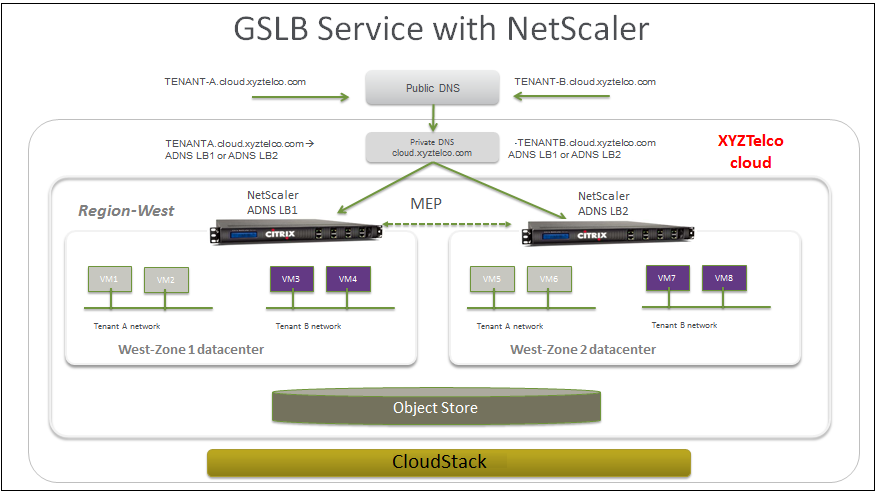
Tenant-A wishes to leverage the GSLB service provided by the xyztelco cloud. Tenant-A configures a GSLB rule to load balance traffic across virtual server 1 at Zone-1 and virtual server 2 at Zone-2. The domain name is provided as A.xyztelco.com. CloudStack orchestrates setting up GSLB virtual server 1 on the GSLB service provider at Zone-1. CloudStack binds virtual server 1 of Zone-1 and virtual server 2 of Zone-2 to GLSB virtual server 1. GSLB virtual server 1 is configured to start monitoring the health of virtual server 1 and 2 in Zone-1. CloudStack will also orchestrate setting up GSLB virtual server 2 on GSLB service provider at Zone-2. CloudStack will bind virtual server 1 of Zone-1 and virtual server 2 of Zone-2 to GLSB virtual server 2. GSLB virtual server 2 is configured to start monitoring the health of virtual server 1 and 2. CloudStack will bind the domain A.xyztelco.com to both the GSLB virtual server 1 and 2. At this point, Tenant-A service will be globally reachable at A.xyztelco.com. The private DNS server for the domain xyztelcom.com is configured by the admin out-of-band to resolve the domain A.xyztelco.com to the GSLB providers at both the zones, which are configured as ADNS for the domain A.xyztelco.com. A client when sends a DNS request to resolve A.xyztelcom.com, will eventually get DNS delegation to the address of GSLB providers at zone 1 and 2. A client DNS request will be received by the GSLB provider. The GSLB provider, depending on the domain for which it needs to resolve, will pick up the GSLB virtual server associated with the domain. Depending on the health of the virtual servers being load balanced, DNS request for the domain will be resolved to the public IP associated with the selected virtual server.
Configuring GSLB
To configure a GSLB deployment, you must first configure a standard load balancing setup for each zone. This enables you to balance load across the different servers in each zone in the region. Then on the NetScaler side, configure both NetScaler appliances that you plan to add to each zone as authoritative DNS (ADNS) servers. Next, create a GSLB site for each zone, configure GSLB virtual servers for each site, create GLSB services, and bind the GSLB services to the GSLB virtual servers. Finally, bind the domain to the GSLB virtual servers. The GSLB configurations on the two appliances at the two different zones are identical, although each sites load-balancing configuration is specific to that site.
Perform the following as a cloud administrator. As per the example given above, the administrator of xyztelco is the one who sets up GSLB:
In the cloud.dns.name global parameter, specify the DNS name of your tenant’s cloud that make use of the GSLB service.
On the NetScaler side, configure GSLB as given in Configuring Global Server Load Balancing (GSLB):
Configuring a standard load balancing setup.
Configure Authoritative DNS, as explained in Configuring an Authoritative DNS Service.
Configure a GSLB site with site name formed from the domain name details.
Configure a GSLB site with the site name formed from the domain name.
As per the example given above, the site names are A.xyztelco.com and B.xyztelco.com.
For more information, see Configuring a Basic GSLB Site.
Configure a GSLB virtual server.
For more information, see Configuring a GSLB Virtual Server.
Configure a GSLB service for each virtual server.
For more information, see Configuring a GSLB Service.
Bind the GSLB services to the GSLB virtual server.
For more information, see Binding GSLB Services to a GSLB Virtual Server.
Bind domain name to GSLB virtual server. Domain name is obtained from the domain details.
For more information, see Binding a Domain to a GSLB Virtual Server.
In each zone that are participating in GSLB, add GSLB-enabled NetScaler device.
For more information, see Enabling GSLB in NetScaler.
As a domain administrator/ user perform the following:
Add a GSLB rule on both the sites.
See “Adding a GSLB Rule”.
Assign load balancer rules.
Prerequisites and Guidelines
The GSLB functionality is supported both Basic and Advanced zones.
GSLB is added as a new network service.
GSLB service provider can be added to a physical network in a zone.
The admin is allowed to enable or disable GSLB functionality at region level.
The admin is allowed to configure a zone as GSLB capable or enabled.
A zone shall be considered as GSLB capable only if a GSLB service provider is provisioned in the zone.
When users have VMs deployed in multiple availability zones which are GSLB enabled, they can use the GSLB functionality to load balance traffic across the VMs in multiple zones.
The users can use GSLB to load balance across the VMs across zones in a region only if the admin has enabled GSLB in that region.
The users can load balance traffic across the availability zones in the same region or different regions.
The admin can configure DNS name for the entire cloud.
The users can specify an unique name across the cloud for a globally load balanced service. The provided name is used as the domain name under the DNS name associated with the cloud.
The user-provided name along with the admin-provided DNS name is used to produce a globally resolvable FQDN for the globally load balanced service of the user. For example, if the admin has configured xyztelco.com as the DNS name for the cloud, and user specifies ‘foo’ for the GSLB virtual service, then the FQDN name of the GSLB virtual service is foo.xyztelco.com.
While setting up GSLB, users can select a load balancing method, such as round robin, for using across the zones that are part of GSLB.
The user shall be able to set weight to zone-level virtual server. Weight shall be considered by the load balancing method for distributing the traffic.
The GSLB functionality shall support session persistence, where series of client requests for particular domain name is sent to a virtual server on the same zone.
Statistics is collected from each GSLB virtual server.
Enabling GSLB in NetScaler
In each zone, add GSLB-enabled NetScaler device for load balancing.
Log in as administrator to the CloudStack UI.
In the left navigation bar, click Infrastructure.
In Zones, click View More.
Choose the zone you want to work with.
Click the Physical Network tab, then click the name of the physical network.
In the Network Service Providers node of the diagram, click Configure.
You might have to scroll down to see this.
Click NetScaler.
Click Add NetScaler device and provide the following:
For NetScaler:
- IP Address: The IP address of the SDX.
- Username/Password: The authentication credentials to access the device. CloudStack uses these credentials to access the device.
- Type: The type of device that is being added. It could be F5 Big Ip Load Balancer, NetScaler VPX, NetScaler MPX, or NetScaler SDX. For a comparison of the NetScaler types, see the CloudStack Administration Guide.
- Public interface: Interface of device that is configured to be part of the public network.
- Private interface: Interface of device that is configured to be part of the private network.
- GSLB service: Select this option.
- GSLB service Public IP: The public IP address of the NAT translator for a GSLB service that is on a private network.
- GSLB service Private IP: The private IP of the GSLB service.
- Number of Retries. Number of times to attempt a command on the device before considering the operation failed. Default is 2.
- Capacity: The number of networks the device can handle.
- Dedicated: When marked as dedicated, this device will be dedicated to a single account. When Dedicated is checked, the value in the Capacity field has no significance implicitly, its value is 1.
Click OK.
Adding a GSLB Rule
Log in to the CloudStack UI as a domain administrator or user.
In the left navigation pane, click Region.
Select the region for which you want to create a GSLB rule.
In the Details tab, click View GSLB.
Click Add GSLB.
The Add GSLB page is displayed as follows:
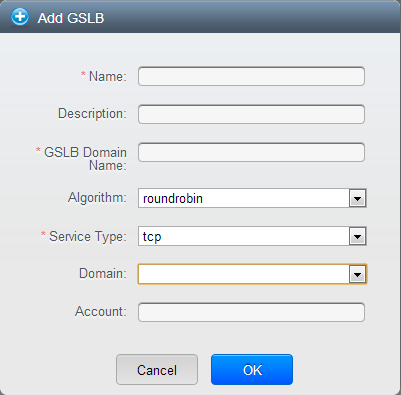
Specify the following:
- Name: Name for the GSLB rule.
- Description: (Optional) A short description of the GSLB rule that can be displayed to users.
- GSLB Domain Name: A preferred domain name for the service.
- Algorithm: (Optional) The algorithm to use to load balance the traffic across the zones. The options are Round Robin, Least Connection, and Proximity.
- Service Type: The transport protocol to use for GSLB. The options are TCP and UDP.
- Domain: (Optional) The domain for which you want to create the GSLB rule.
- Account: (Optional) The account on which you want to apply the GSLB rule.
Click OK to confirm.
Assigning Load Balancing Rules to GSLB
- Log in to the CloudStack UI as a domain administrator or user.
- In the left navigation pane, click Region.
- Select the region for which you want to create a GSLB rule.
- In the Details tab, click View GSLB.
- Select the desired GSLB.
- Click view assigned load balancing.
- Click assign more load balancing.
- Select the load balancing rule you have created for the zone.
- Click OK to confirm.
Known Limitation
Currently, CloudStack does not support orchestration of services across the zones. The notion of services and service providers in region are to be introduced.