About Backup And Recovery
CloudStack version 4.14 introduces a new Backup and Recovery (B&R) framework that provides CloudStack with users the ability to back up their Guest Instances for recovery purposes via 3rd party backup solutions. The framework abstracts the API commands required for common backup and recovery operations, from the vendor specific commands needed to perform those actions and provides a plugin model to enable any solution which provides backup and recovery ‘like’ features to be integrated.
The following providers are currently supported:
VMware with Veeam Backup and Recovery
KVM with DELL EMC Networker
KVM with NAS B&R Plugin (4.20 onwards)
See the Veeam Backup and Recovery plugin documentation for plugin specific information. Veeam Backup and Replication Plugin
See the DELL EMC Networker Backup and Recovery plugin documentation for plugin specific information. DELL EMC Networker Backup and Recovery Plugin
See the NAS Backup and Recovery plugin documentation for plugin specific information. NAS Backup and Recovery Plugin
Backup and Recovery Concepts
Backup and recovery has been designed to support two modes:
‘SLA’ based backups
Adhoc and user scheduled backups
‘SLA’ based backups are ones where the Cloud provider (ie the root admin) controls the time, and frequency of a backup scheme. A user signs up for a ‘Gold’ offering, which might give them a RPO of 12 hours and the last 14 backups kept; however the user would not be allowed to perform additional backups nor set the exact time that these backups took place. The user might be charged a fix rate for these backups regardless of the size of the backups.
To use an SLA based backup policy the user adds their Instances to the offering/policy. The job then runs at its predetermined times and ‘includes’ the Instance when it runs. A user can remove the Instance from the offering/policy and it will no longer be included in the job when it runs.
Adhoc and user scheduled backups follow the same idea as Volume Snapshots, however they leverage the backup solution rather than secondary storage. These could likely be billed on backup storage consumed or protected capacity (the full virtual size of the Instance(s) being backed up.
Adhoc and user scheduled backups are created and managed in the same fashion as Volume Snapshots are.
Configuring Backup and Recovery
The cloud administrator can use global configuration variables to control the behavior of B&R feature. To set these variables, go through the Global Settings area of the CloudStack UI.
Configuration |
Description |
|---|---|
backup.framework.enabled |
Setting to enable or disable the feature. Default: false. |
backup.framework.provider.plugin |
The backup provider (plugin) name. For example: ‘dummy’, ‘veeam’, ‘networker’ and ‘nas’. This is a zone specific setting. Default: dummy. |
backup.framework.sync.interval |
Background sync task internal in seconds that performs metrics/usage stats collection, backup reconciliation and backup scheduling. Default: 300. |
Plugin specific settings
Each backup and recovery plugin is likely to have settings specific to that plugin. Refer to the CloudStack documentation for your plugin for details on how to configure those settings.
Backup Offerings
Admins can import an external provider’s backup offerings using UI or API for a particular zone, as well as manage a backup offering’s lifecycle. Admins can also specify if a backup offering allows user-defined backup schedules and ad-hoc backups. Users can list and consume the imported backup offerings, only root admins can import or delete offerings.
Supported APIs:
listBackupProviders: lists available backup provider plugins
listBackupProviderOfferings: lists external backup policy/offering from a provider
importBackupOffering: allows importing of an external backup policy/offering to CloudStack as a backup offering
listBackupOfferings: lists CloudStack’s backup offerings (searching via keyword, and pagination supported)
deleteBackupOffering: deletes a backup offering by its ID
Importing Backup Offerings
See plugin specific documentation to create ‘Backup provider offerings’
To import a backup provider offering;
(As root) navigate to Service Offerings, click on the ‘select offering’ dropdown box and select ‘Backup Offerings’
Click on Import Backup Offering
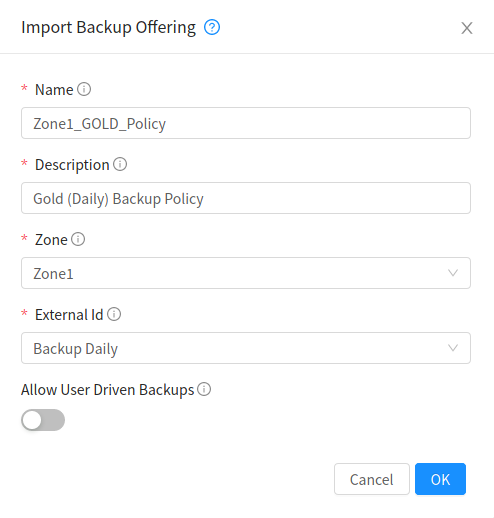
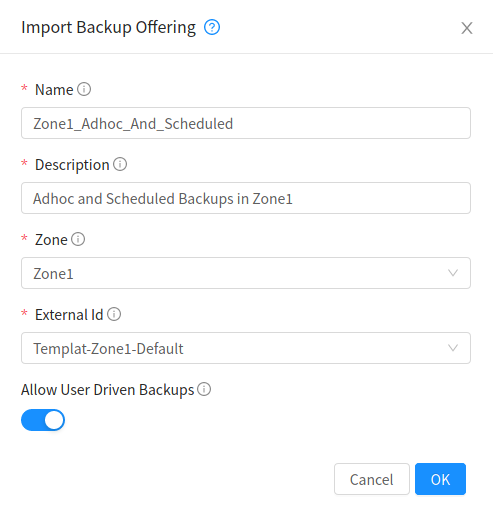
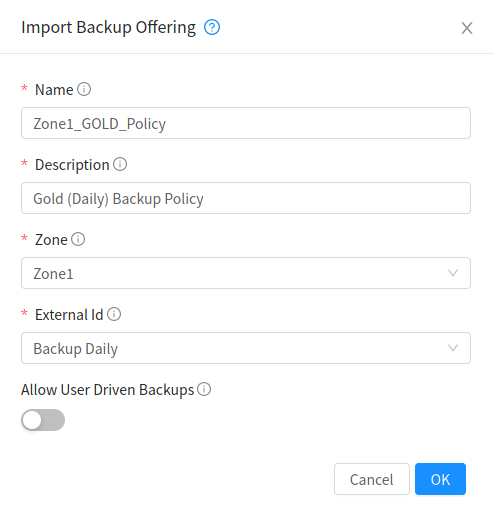
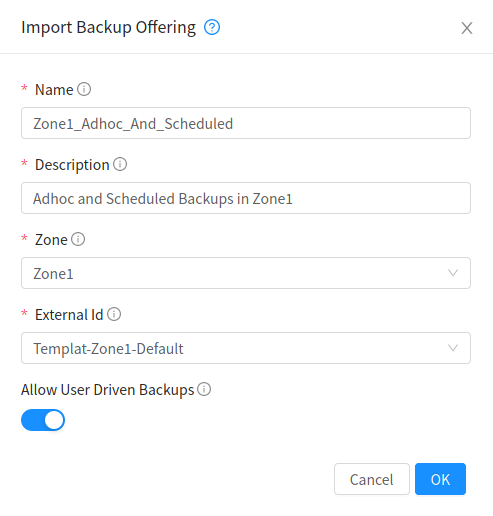
Enter your user-friendly name and description and select the applicable zone. The External ID will then be populated with the Template jobs which CloudStack retrieves from the connected provider.
Creating Instance Backups
SLA/Policy Based backups
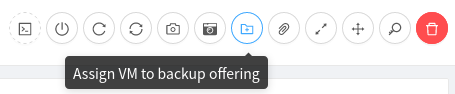
With the backup and recovery feature enabled for a zone, users simply add and remove an Instance from a backup offering.
Adhoc and Scheduled Backups
For backup offerings that allow ad-hoc user backups and user-defined backup schedules, user will be allowed to define a backup schedule for an Instance that is assigned to a backup offering using UI and API. An Instance with backup will not be allowed to add/remove volumes similar to Instance Snapshots.
To trigger an adhoc backup of an Instance, navigate to the Instance and click on the ‘Create Backup’ icon.

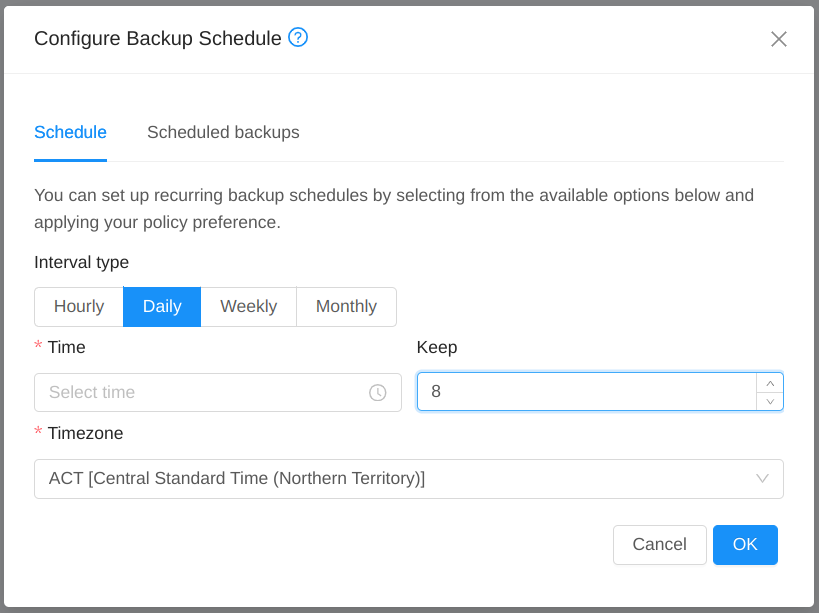
To setup a recurring backup schedule, navigate to the Instance and click on the ‘Configure Backup Schedule’ icon.

Then set the Interval type, timezone, time of taking the backup and maximum numbers of backups to retain.
Restoring Instance Backups
Users will need to stop an Instance to restore to any existing Instance backup, restoration of an expunged Instance will not restore nics and recovery any network which may/may not exist. User may however restore a specific volume from an Instance backup and attach that volume to a specified Instance.
Creating a new Instance from Backup
Since CloudStack 4.21, users can now remove the backup offering and expunge or unmanage an instance that has existing backups, for the supported backup providers — Dummy, NAS, and Veeam. Additionally, users can create a new instance from a backup using any of these providers.
Each backup now includes metadata that captures the instance’s configuration at the time of backup including service offering, template, disk offerings for all data volumes, attached networks, and instance-specific settings. The new instance will be created with the same configuration and data as the original instance at the time the backup was taken.
Warning
Users should ensure that the entry for the expunged or unmanaged instance is not purged from the database, as the backup framework relies on it to function correctly.
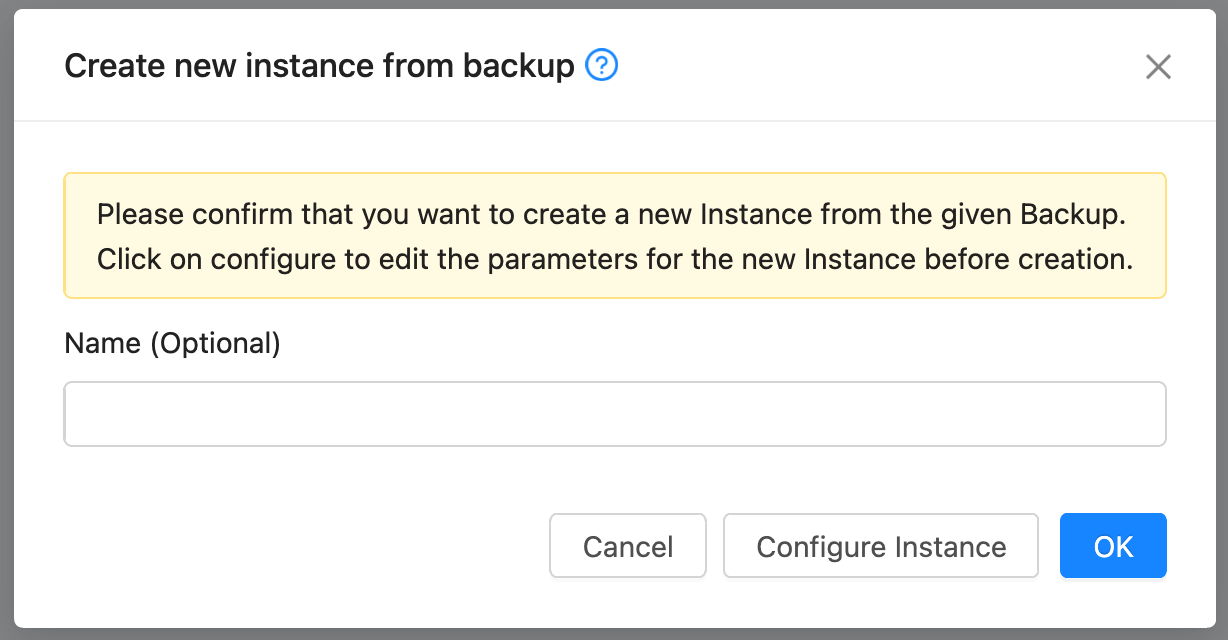
Users also have the option to customize the configuration of the new instance, similar to deploying a new instance from scratch. The deployment form will be pre-filled with the values captured in the backup, but users can modify them as needed. However, the number of volumes in the new instance must match the number of volumes in the backup. If volume sizes are customized, users must ensure that each volume is at least as large as the corresponding volume in the backup. Advanced settings are not pre-filled in the form by default, but if left unset, they will automatically be retrieved from the backup metadata. The Template and ISO can only be updated via the UI if the UUID stored in the backup is no longer available in the environment.
If the original instance from which the backup was created has been expunged, users will be presented with an option to reuse thesame IP address and MAC address stored in the backup metadata. The new instance will be assigned the same IP and MAC address, provided they are still available in the network.
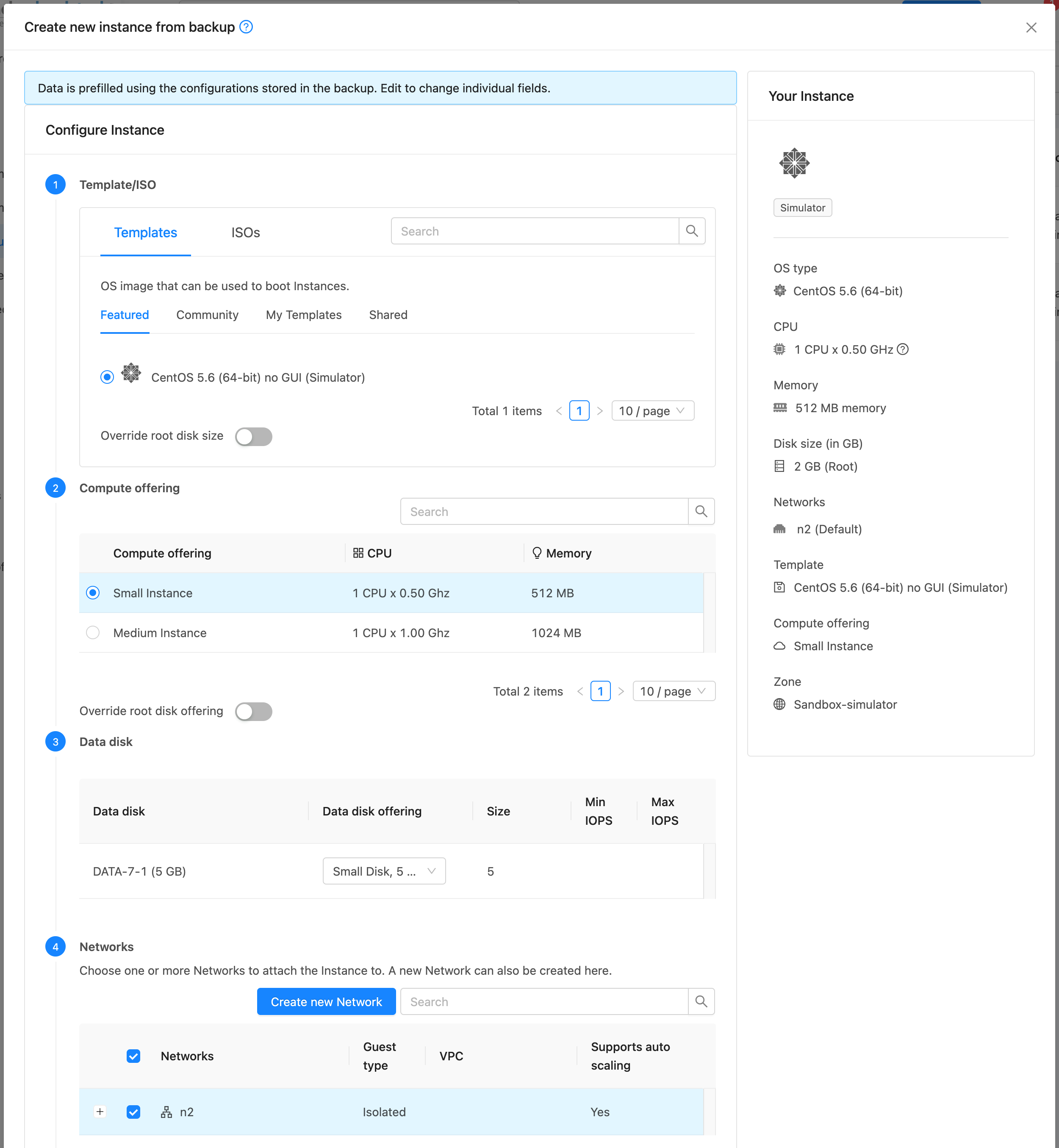
If one or few of the resources stored in the backup such as template, networks etc are no longer available in the system, the user will be prompted to reconfigure the Instance before creating it from backup.
Note
If the backup was created in a release prior to 4.21, the backup metadata won’t contain the instance configuration details, so users would have to fill in the required details by clicking on the Configure Instance button.
Supported APIs:
assignVirtualMachineToBackupOffering: adds an Instance to a backup offering.
removeVirtualMachineFromBackupOffering: removes an Instance from a backup offering, if forced true parameter is passed this may also remove any and all the backups of an Instance associated with a backup offering.
createBackupSchedule: creates a backup schedule for an Instance.
updateBackupSchedule: updates backup schedule.
listBackupSchedule: returns backup schedule of an Instance if defined.
deleteBackupSchedule: deletes backup schedule of an Instance.
createBackup: creates an adhoc backup for an Instance.
deleteBackup: deletes an Instance backup (not support for per restore point for Veeam).
listBackups: lists backups.
restoreBackup: restore a previous Instance backup in-place of a stopped or destroyed Instance.
restoreVolumeFromBackupAndAttachToVM: restore and attach a backed-up volume (of an Instance backup) to a specified Instance.
createInstanceFromBackup: create a new Instance from a backup.
Configuring resource limits on Backups
Administrators can enforce limits on the maximum number of backups that can be taken and the total backup storage size that can be used at an account, domain and project level. Administrators can do this by going to the configure limits tab in accounts, domains and projects similar to when enforcing resource limits on volumes, primary storage usage etc.
Unlike other resources like volumes, backup limits take into account the physical used size and not the allocated size of the backup. This is because the backup once taken can never grow into the allocated size. At the time of backup creation, Cloudstack doesn’t know the size of the backup that will be taken, so it uses the physical size of the volumes to be backed up from Volume Stats to calculate the backup size for checking resource limits. If Volume Stats are not present, then the virtual size of the volumes is used to calculate the backup size, although the actual backup size may be less than the size use to do resource limit check.